
If you are attempting to upgrade your vCenter Server and are getting stuck in stage one while connecting to the source appliance, a simple password change may get you going again. In my case, I was upgrading from vCenter 6.7 U2 to 7.0 but this could certainly occur with other upgrade paths as well. I got the following error:
“A problem occurred while getting data from the source vCenter Server.”
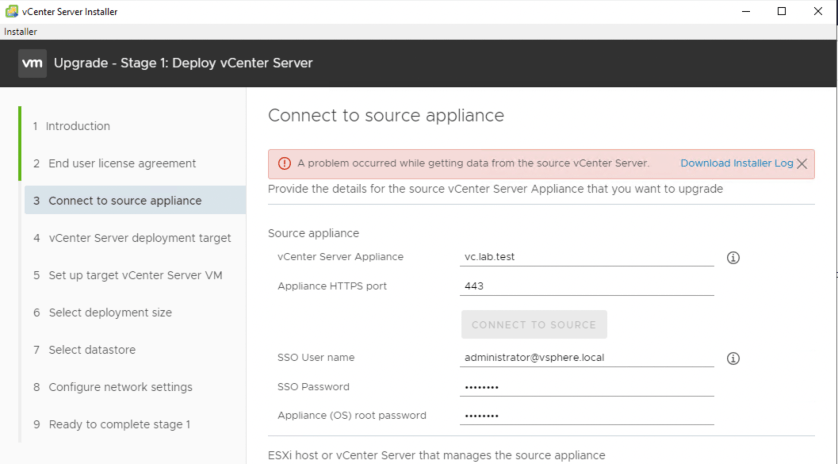
The error message is pretty non-descript, but we do get the option to download some logging. In the log file downloaded, it seems pretty clear that this is an authentication problem:
2020-04-12T20:13:55.435Z - info: VM Identifier for Source VC: vm-16
2020-04-12T20:13:55.568Z - debug: initiateFileTransferFromGuest error: ServerFaultCode: Failed to authenticate with the guest operating system using the supplied credentials.
2020-04-12T20:13:55.568Z - debug: Failed to get fileTransferInfo:ServerFaultCode: Failed to authenticate with the guest operating system using the supplied credentials.
2020-04-12T20:13:55.568Z - debug: Failed to get url of file in guest vm:ServerFaultCode: Failed to authenticate with the guest operating system using the supplied credentials.
<snip>
2020-04-12T20:13:55.569Z - error: Failed to read the nodetype, Error: Failed to authenticate with the guest operating system using the supplied credentials.
2020-04-12T20:13:55.569Z - info: Checking if password expired
<snip>
2020-04-12T20:13:58.915Z - info: Stream :: close
2020-04-12T20:13:58.915Z - info: Password not expired
2020-04-12T20:13:58.917Z - error: sourcePrecheck: error in getting source Info: ServerFaultCode: Failed to authenticate with the guest operating system using the supplied credentials.
Despite double checking that my credentials were correct, the logging insisted that there was something wrong with them. The logging also states that the password was not expired. Despite this, I decided to check anyway:
root@vc [ ~ ]# chage -l root
You are required to change your password immediately (root enforced)
chage: PAM: Authentication token is no longer valid; new one required
Well, that’ll do it. Looks like the root password was expired after all. I found it odd that it allowed me to login via SSH without any kind of password expiry warning. I changed the password using the ‘passwd’ root shell command.
root@vc [ ~ ]# passwd
New password:
BAD PASSWORD: it is based on a dictionary word
Retype new password:
passwd: password updated successfully
root@vc [ ~ ]# chage -l root
Last password change                                    : Apr 12, 2020
Password expires                                        : Jul 11, 2020
Password inactive                                       : never
Account expires                                         : never
Minimum number of days between password change          : 0
Maximum number of days between password change          : 90
Number of days of warning before password expires       : 7
After changing the password from the CLI, the upgrade progressed normally! Hopefully this tip may help others that get stuck on this step as well.
 vswitchzero